Give the month a plan.
Set what you expect to spend, then compare it with the payments that arrive.
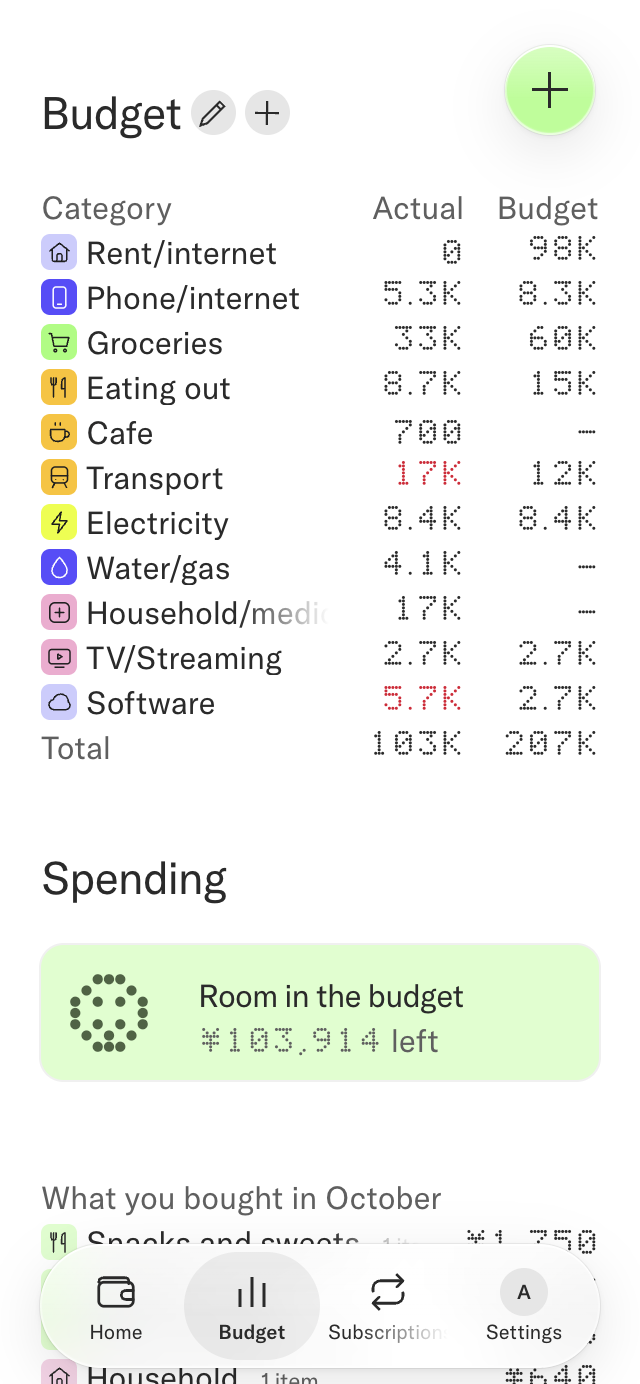
Set your planned amounts
Open Budget and press the pen beside its title. Adjust the planned amounts in the editable controls. Press the pen again to save the budget.
The planned amounts and actual spending are different: changing the plan does not edit a payment.
Add a category
Open the plus beside Budget and choose New category. Follow the form and choose Save to keep it, or Cancel to leave it.
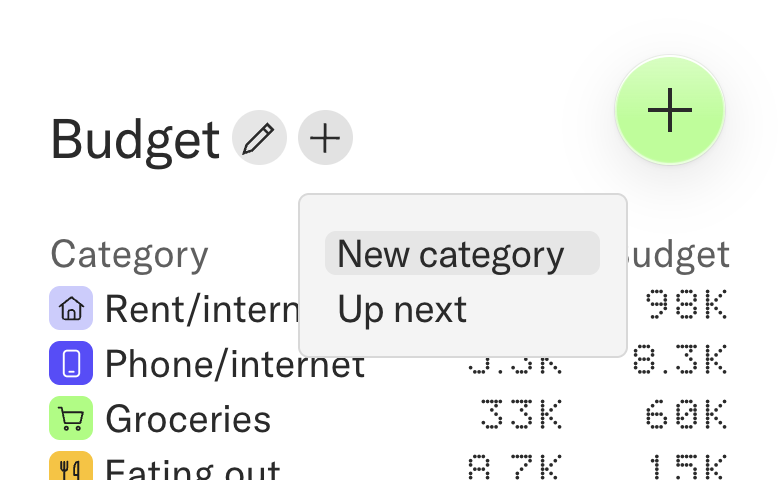
Plan something coming up
Open the same plus and choose Up next. Give the planned purchase its details, then choose Save.
Once there is a plan, Up next appears below Spending. Open a plan there to change it.
Compare the plan with spending
Spending shows how the month is going and what you bought, based on your transactions and receipts. Open a category or purchase to inspect the payments behind it.
If Money says this view comes with the Money plan, open Settings, General to see your subscription. Add receipts and transactions to bring spending into the view.
The controls shown in these instructions are illustrations. Use them in Money to make a change.